2
Home
delias edited this page 2025-10-18 08:40:25 +00:00
1. Requirements
| Requirement | Comment | Link |
|---|---|---|
| Python | 3.14 or latest | Download |
| Power BI Desktop | Download | |
| OPCUA python library | Installed via command line | Instructions |
| Pandas python library | Installed via command line | Instructions |
2. Install python libraries
After installing python, open command line or terminal windows and run the following command:
python -m pip install opcua pandas
3. Setup python in Power BI
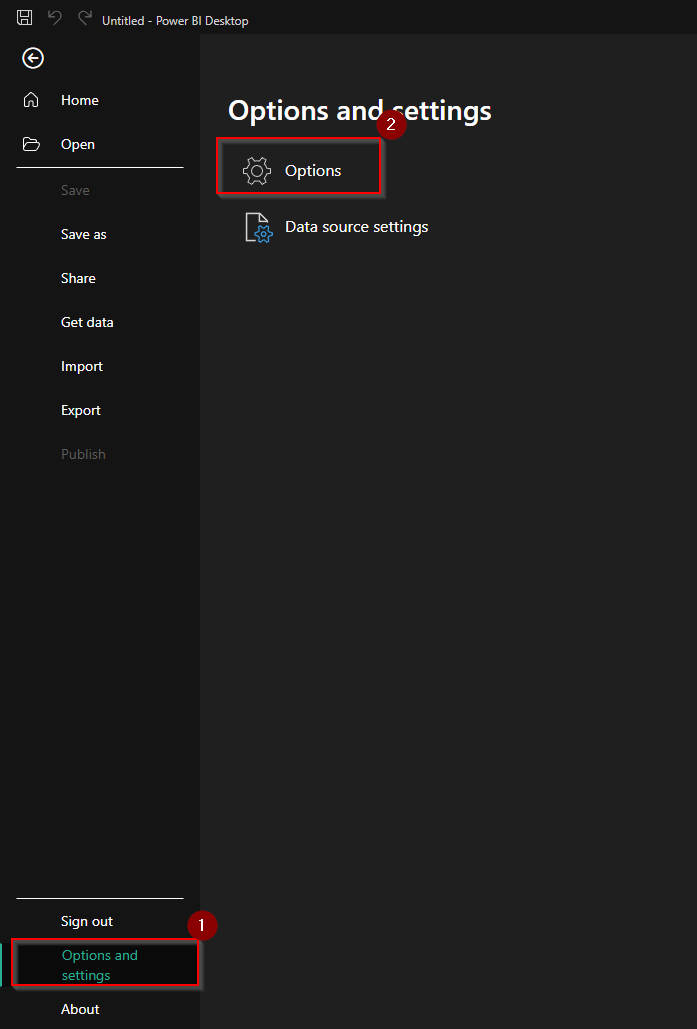
After installing python and Power BI desktop, open Power BI and click the following menus: File - Options and settings - Options
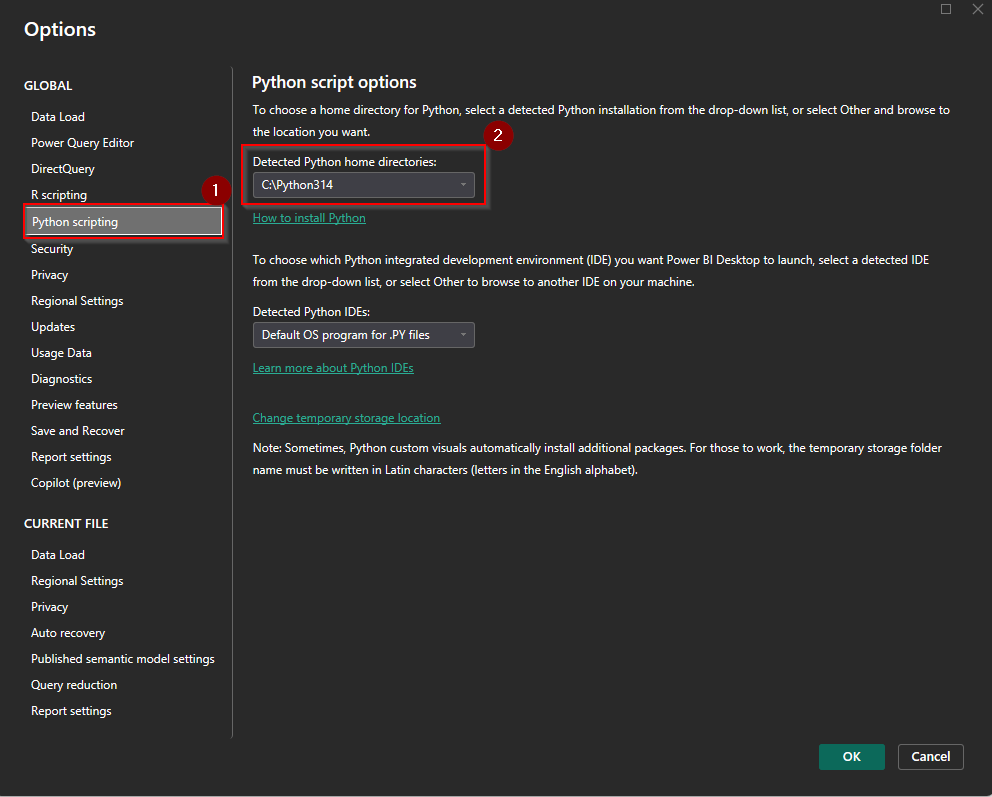
A window will popup. Select 'Python Scripting' on the left tab and make sure there is a Python Home directory selected so Power BI can run python scripts
4. Refresh data
- Open Report with Power BI desktop
- Connect PC to PLC network and make sure network settings are correct and you can connect to all PLC's
- Press Refresh button
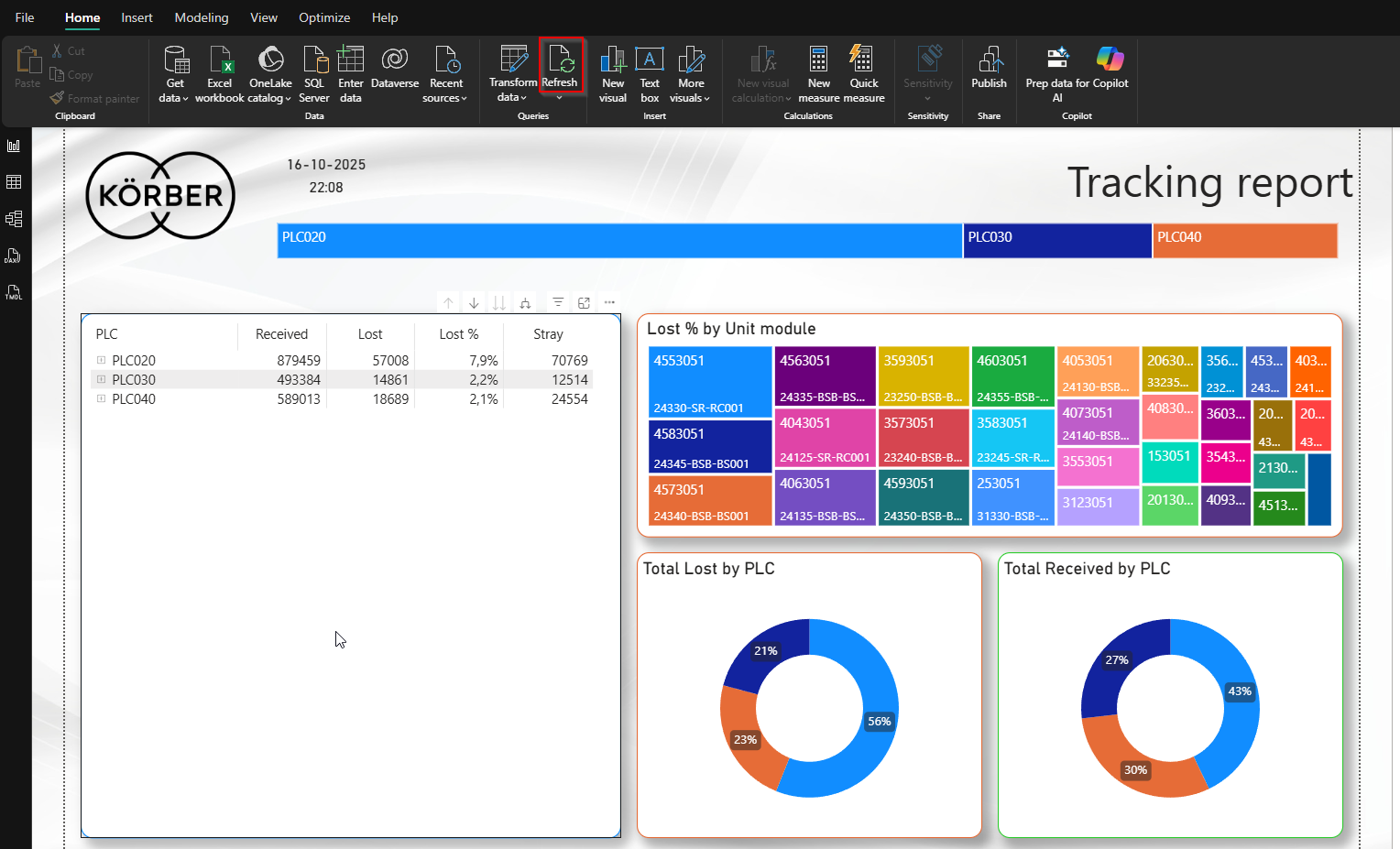
Power BI will run a python script that will connect to all PLC's and collect tracking data. This can take a minute or so. When finished, the report will update with the new data. Make sure to save the report to keep the latest date. On top of the report the last update date and time will be set to current.
5. Add remove PLC's
- Open Power BI report
- Open power query
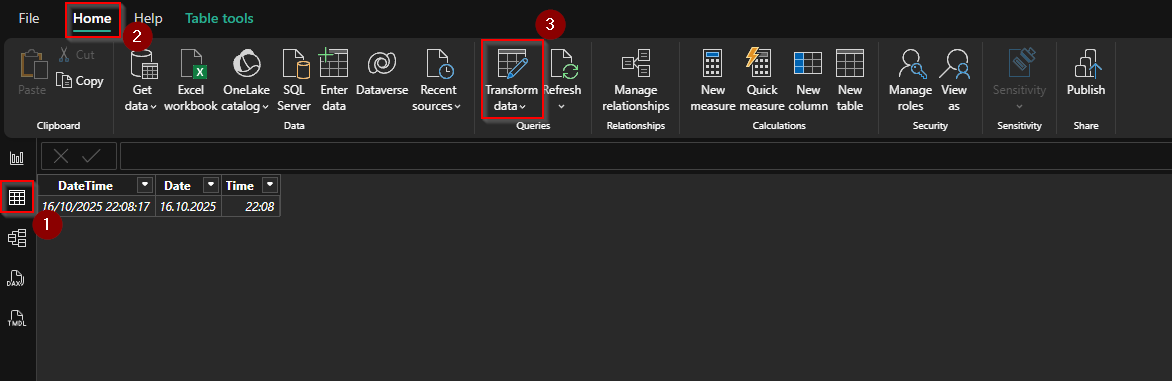
- Open df Source
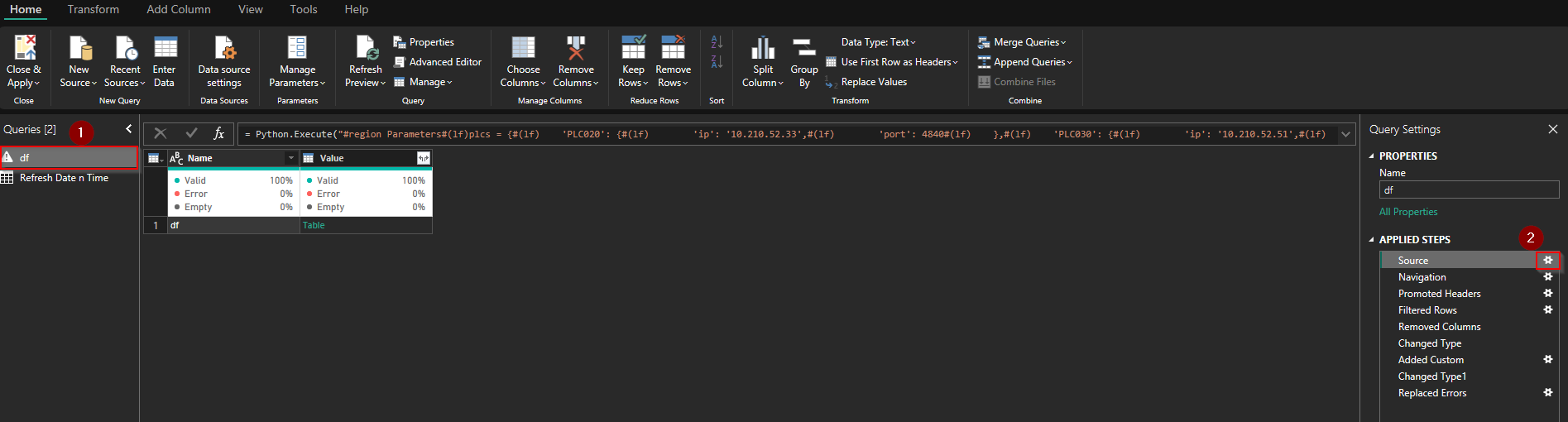
- Edit python script
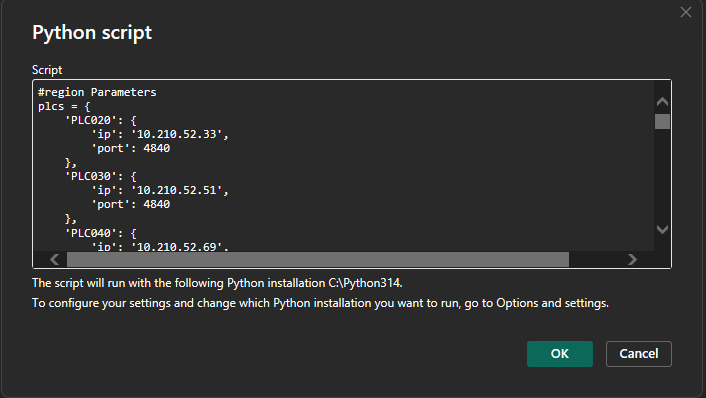
- Change plcs variable according to project details